
Features
Everything inside EasySeer
EasySeer is a Windows desktop tool with six connected steps, from input to formatting and delivery. You approve every step, the code runs on your own computer, and the manuscript is a first draft you must verify.
One desktop tool that takes a handwritten concept through six connected steps. Every feature below comes from the real tool. Click a screen to enlarge it.
The 6 steps
What makes it different
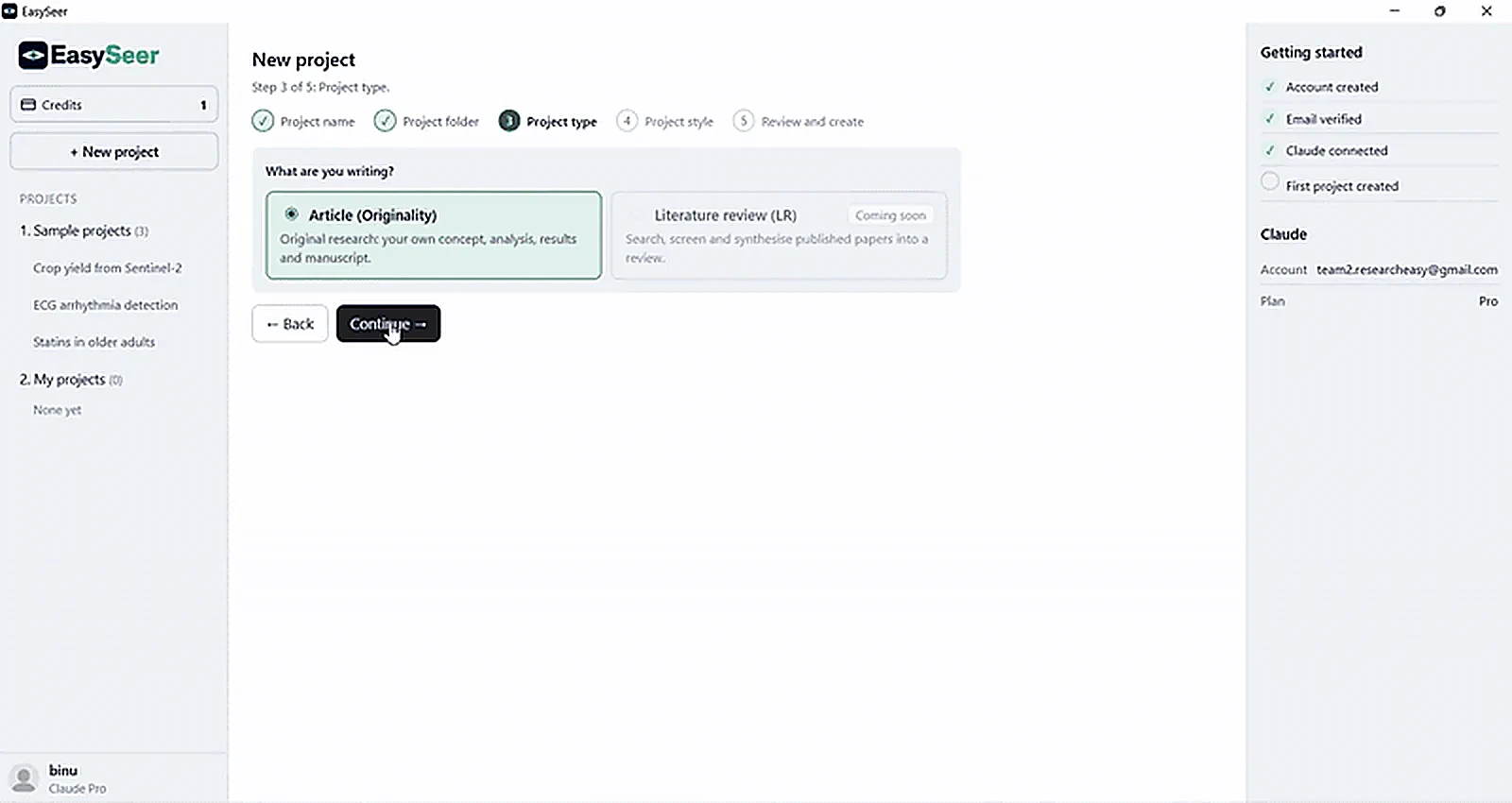
One project per paper
Each paper lives in its own project folder on your computer, with the inputs, spec, code, results and manuscript kept together. A five-step wizard sets it up: name, folder, project type, style, review.
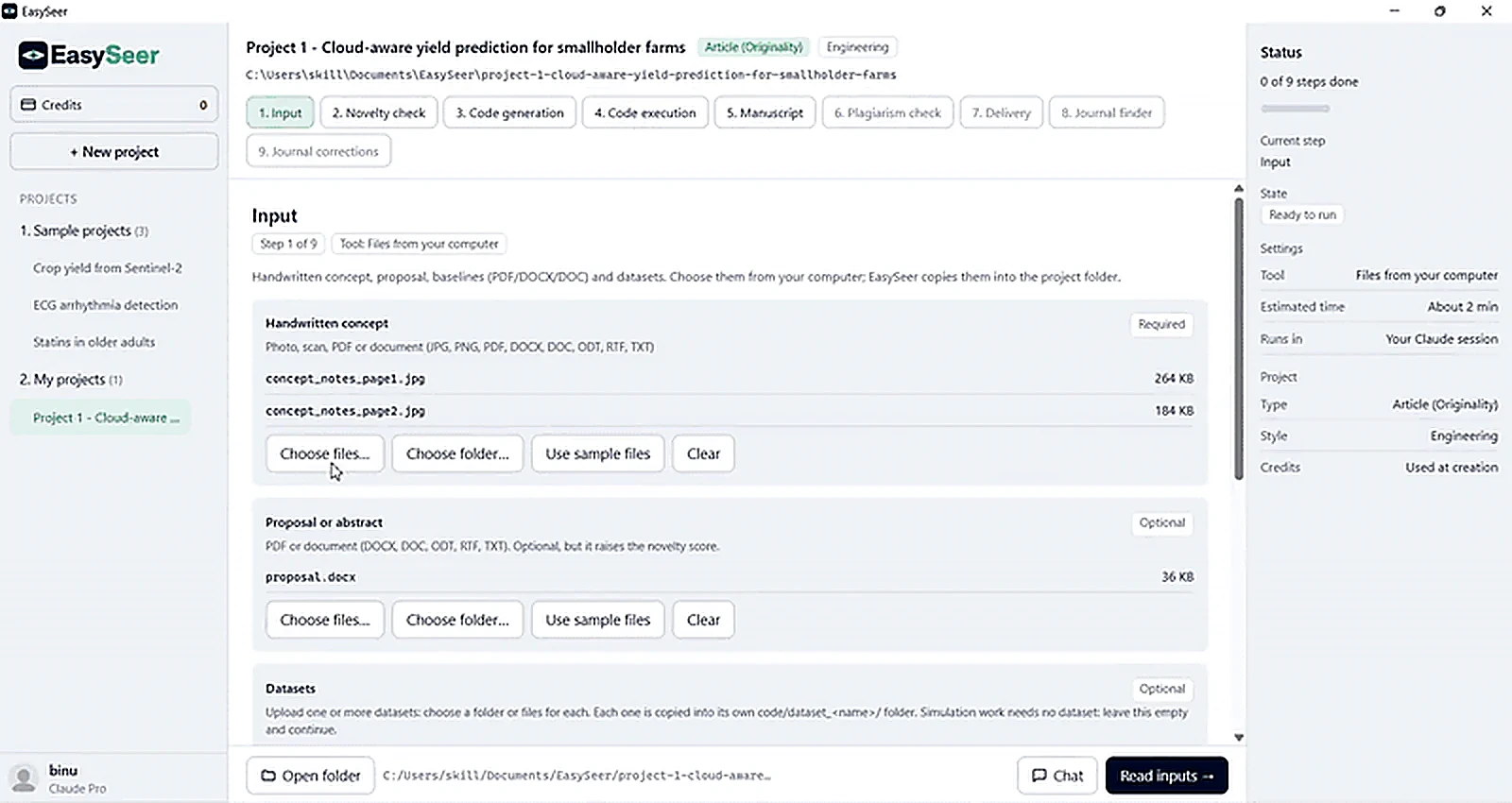
Six tracked steps
Input, novelty check, code generation, code execution, manuscript generation and delivery. A status panel shows the current step, state, elapsed time and what is done.
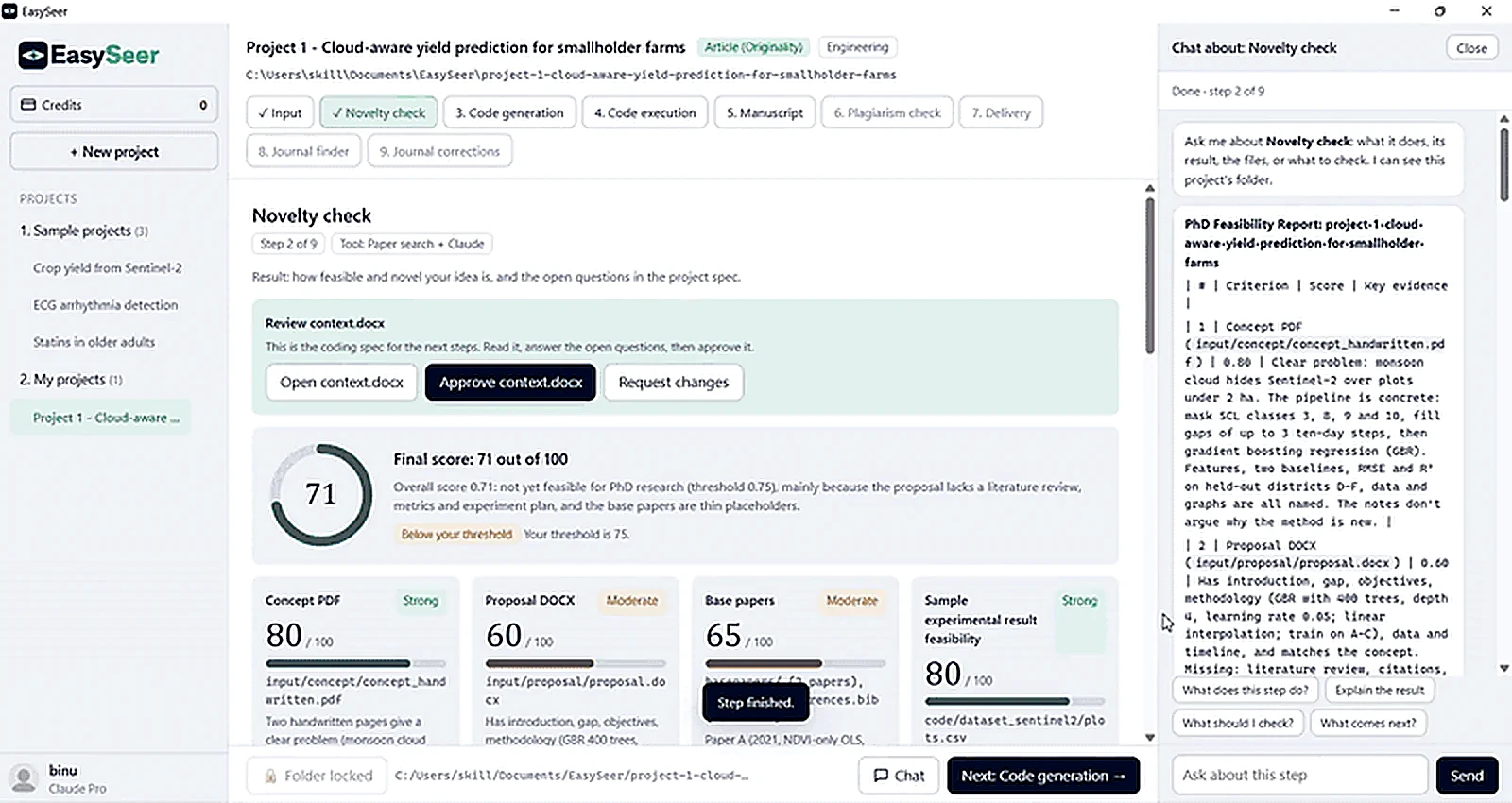
You approve every gate
After the novelty check EasySeer drafts a project spec (context.docx). You open it, answer the open questions, then approve it or request changes. Later steps build only on what you approved.
Scored novelty check
Concept, proposal, base papers and the planned experiment are each scored out of 100 with reasons, then combined into a final score against your own threshold.
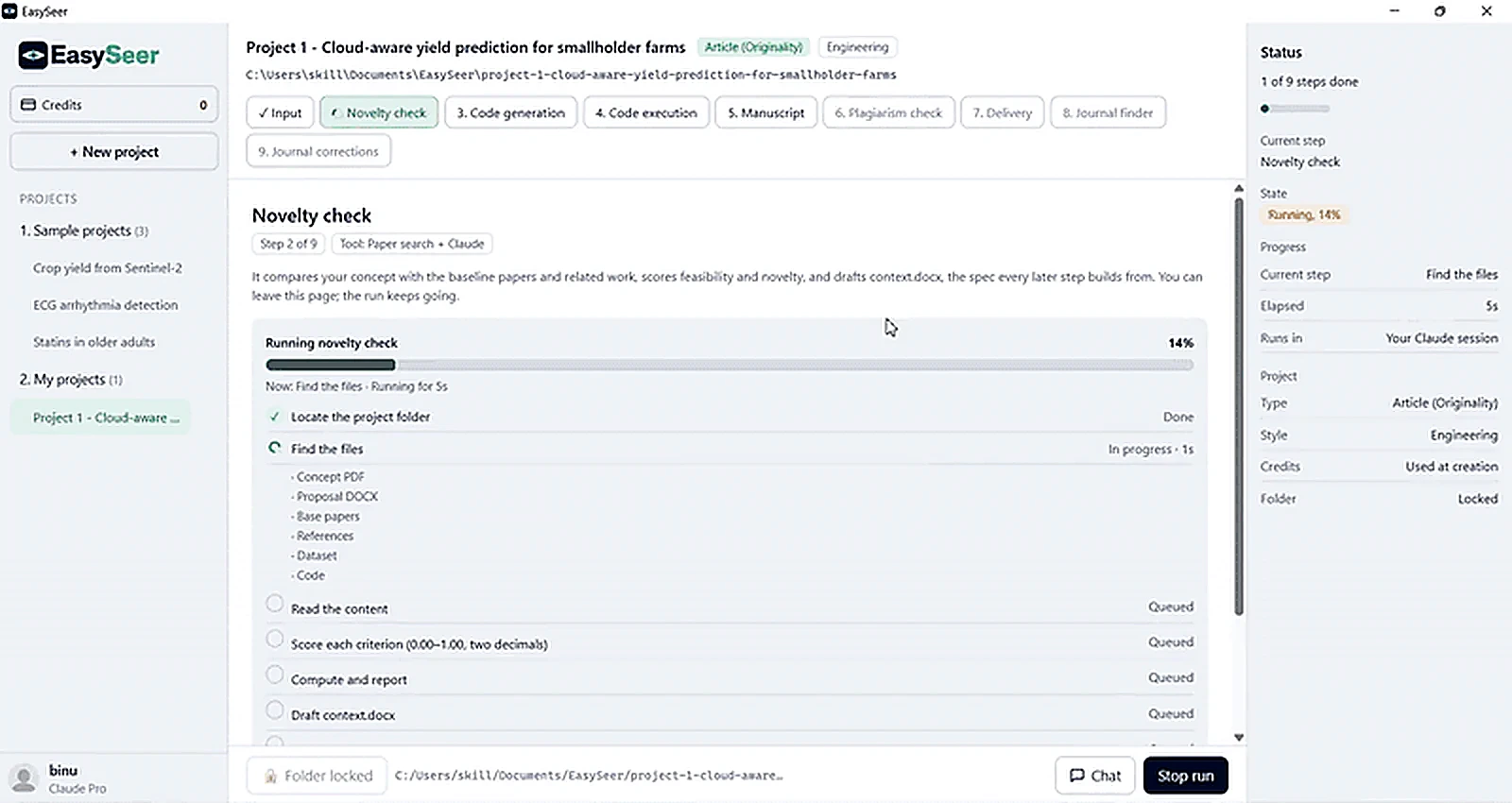
Chat about the current step
A side chat that knows the step and the project folder. One-tap questions: What does this step do? Explain the result. What should I check? What comes next?
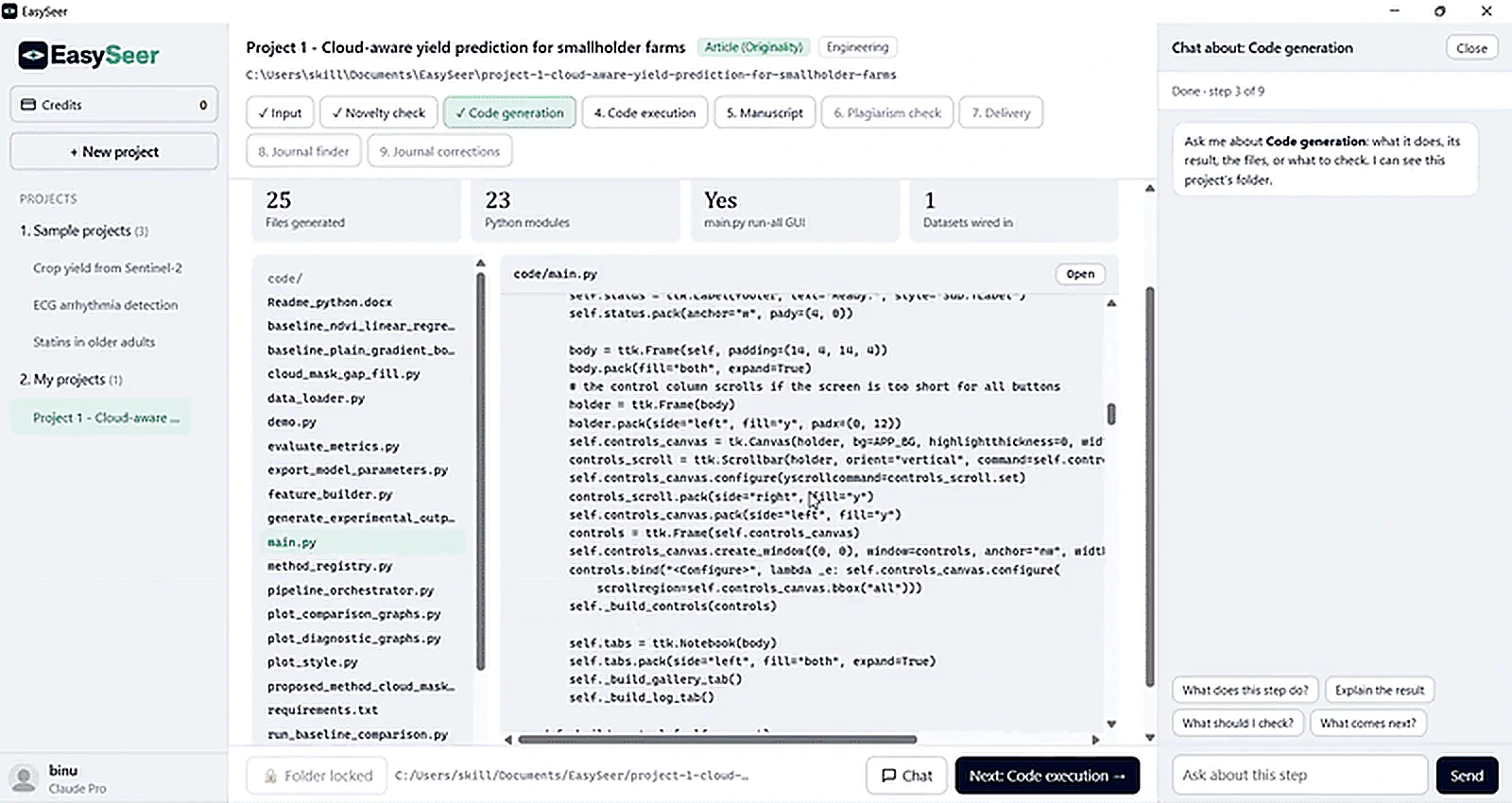
Readable, runnable code
Code is written as separate files, one per task (data loader, baselines, proposed method, metrics, plots, pipeline), plus a main file with a GUI to run everything. You can open any file.
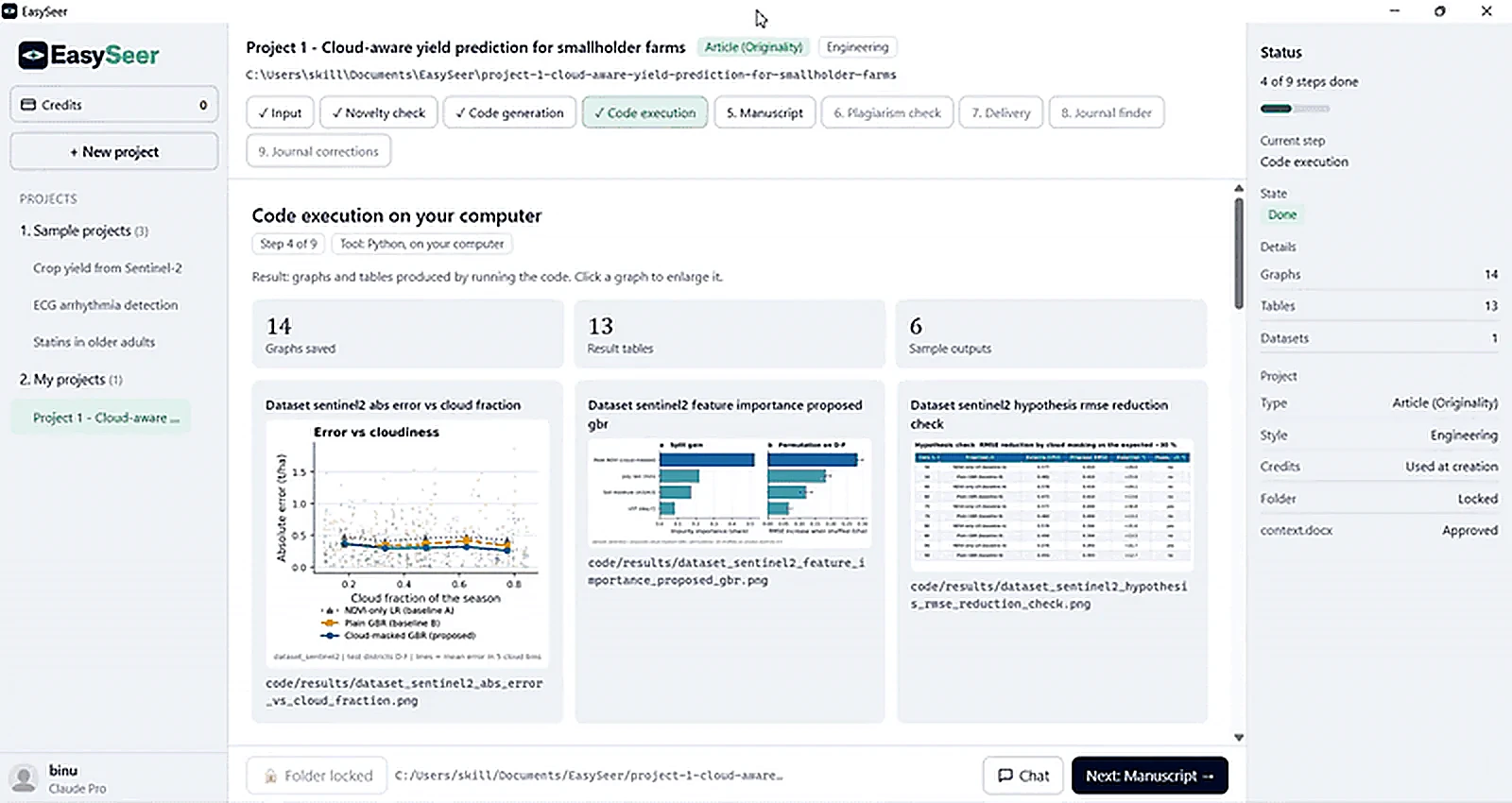
Runs on your own computer
Code runs locally with Python, so your data stays in your project folder. Runs show live progress, elapsed time and a log, and you can stop a run.
Graphs, tables and outputs collected
Every run saves graphs, result tables and sample outputs with their file paths. Click a graph to enlarge it. The counts (graphs, tables, datasets) appear in the status panel.
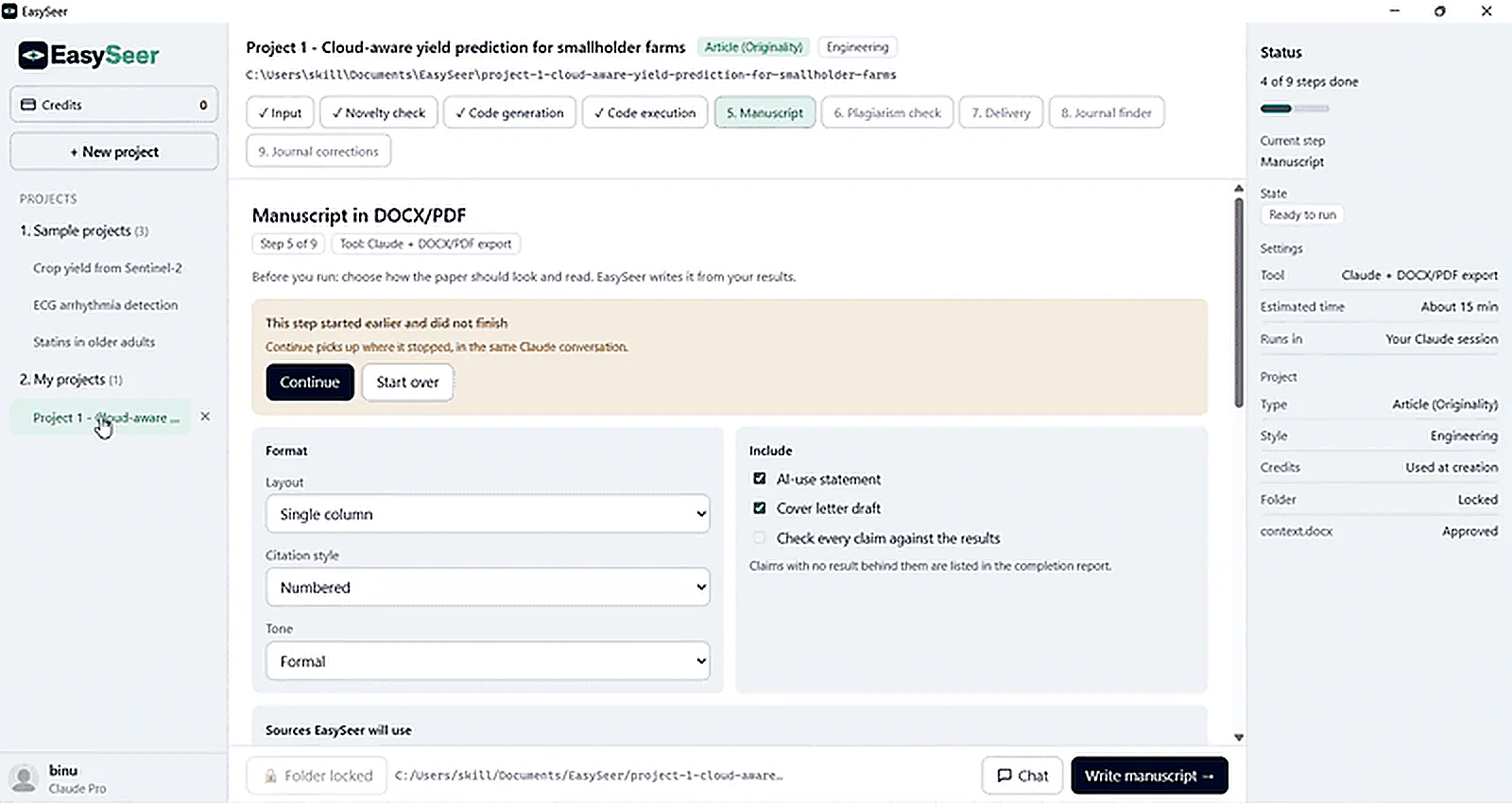
Manuscript in DOCX and PDF
Choose layout (for example single column), citation style (for example numbered) and tone (for example formal), and which sources to use. The draft shows a section outline beside the text.
AI-use statement and claim check
Optionally include an AI-use statement and a cover letter draft, and ask EasySeer to check every claim against your results. Claims with no result behind them are listed in the completion report.
Pick up where you stopped
If a step was interrupted, a banner offers Continue (it resumes in the same Claude conversation) or Start over. A run keeps going if you leave the page.
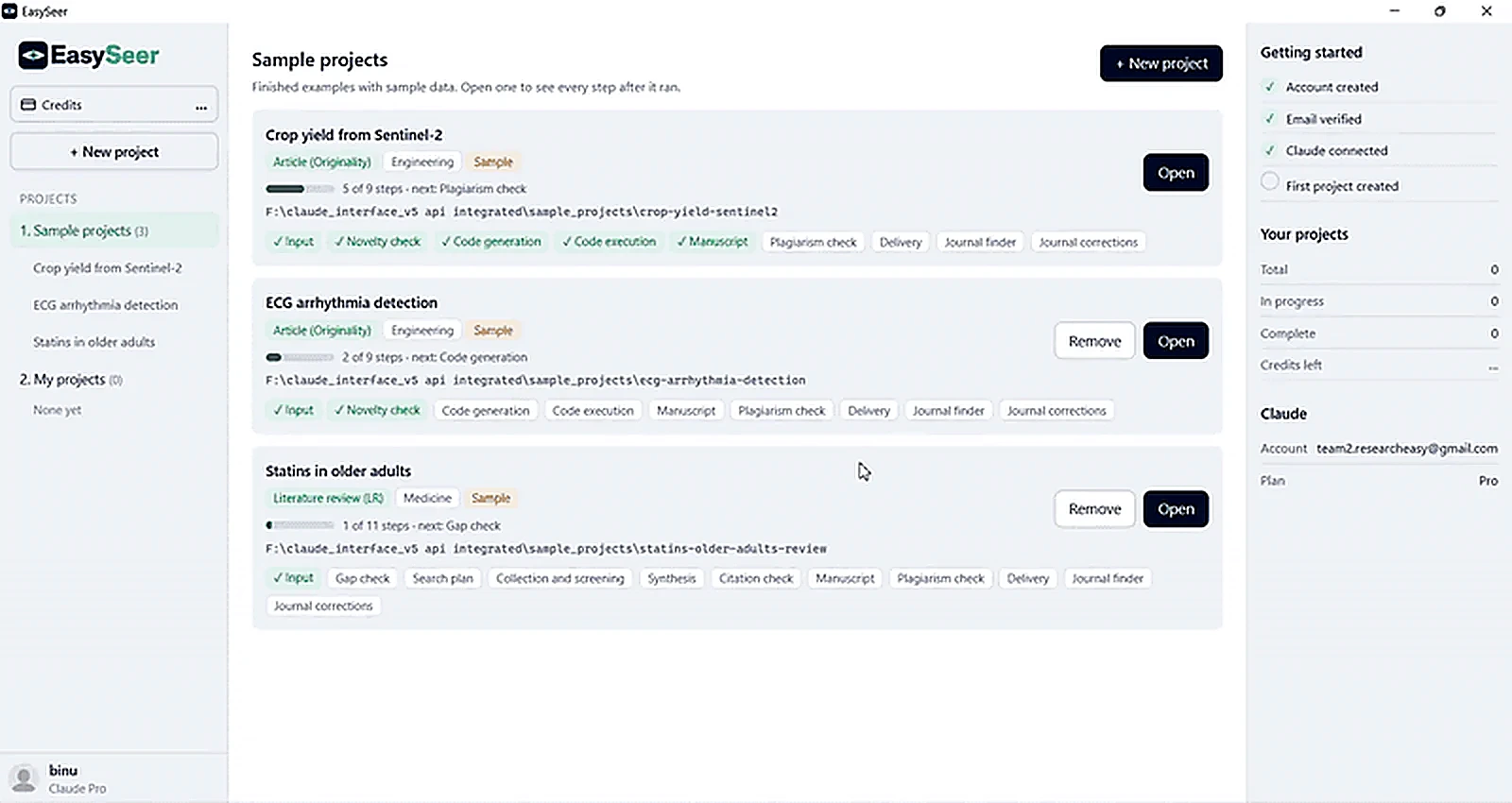
Sample projects included
Open finished examples with sample data and see every step after it ran: crop yield from Sentinel-2, ECG arrhythmia detection and a statins literature review.
Your own Claude session
EasySeer runs inside your own Claude account, shown in the app as the connected account and plan. The Getting started checklist shows account, email, Claude connection and first project.
Credits that never expire
One credit runs one project. Credits are shown in the app, are used when a project is created and never expire.
Make your first project Open the product tour
EasySeer is AI. It creates only an initial draft from the novel concept you provide, and it is designed to follow academic ethical guidelines.